When you select Event Handler as the Event Source for the Flux App, the App is triggered when a Soracom Event Handler rule fires. The event handler delivers the event to the channel with its Run a Flux app action.
An event handler that runs a Flux app cannot have any other action. To perform other actions when the same rule fires, create a separate event handler.
Creating an Event Handler for a Channel
Event handlers are created and edited on the Event Handler screen of the User Console. Soracom Flux Studio opens that screen for you with the Run a Flux app action already set to the channel:
- New channel: Create a channel and select Event Handler as its event source, as described in Create a Channel and Select an Event Source. Once the channel is created, the Event Handler screen opens.
- Existing channel: On the Event Source tab of the channel, click Add an event source, select Event Handler, and then click Create Event Handler.
On the Event Handler screen, configure the Target and Rule of the event handler. The Run a Flux app action is preset with the Flux app and Channel of the channel you came from and cannot be changed. Click Create to save the event handler and return to the channel. For details on targets and rules, refer to Event Handler Configuration.
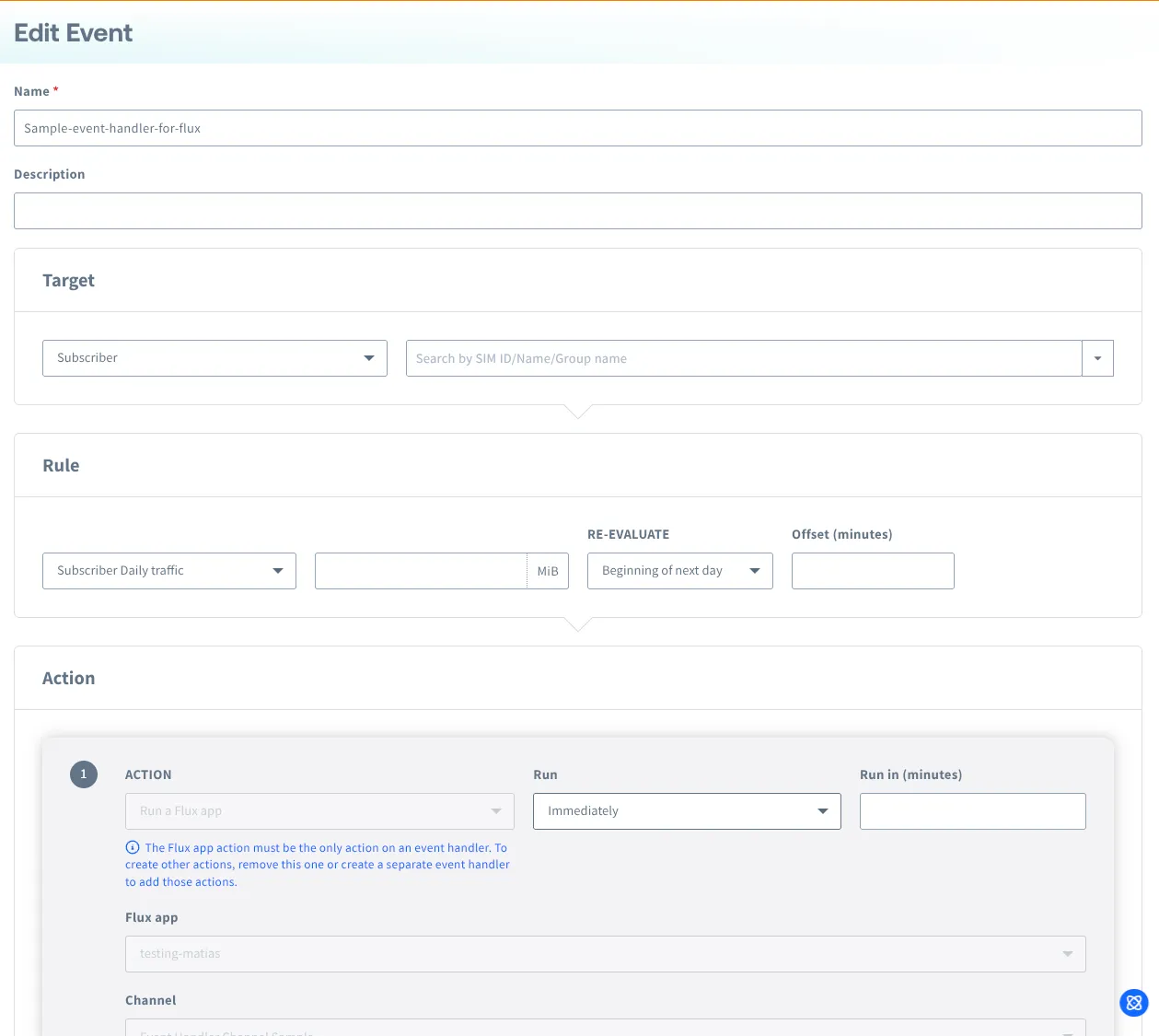
The event handler now appears on the Event Source tab of the channel and in Flux Studio. A channel can have several event handlers; repeat the steps above to add another.
An event handler can also be created on the Event Handler screen directly by selecting the Run a Flux app action and choosing the Flux app and Channel. The event is delivered to the channel either way. If such an event handler does not appear on the channel, open it on the Event Handler screen and click Link to the Flux channel.
Managing Event Handlers on a Channel
Each event handler that delivers to the channel is listed on the Event Source tab of the channel, with its name, a summary of its rule and what it watches, and whether it is Active or Inactive.
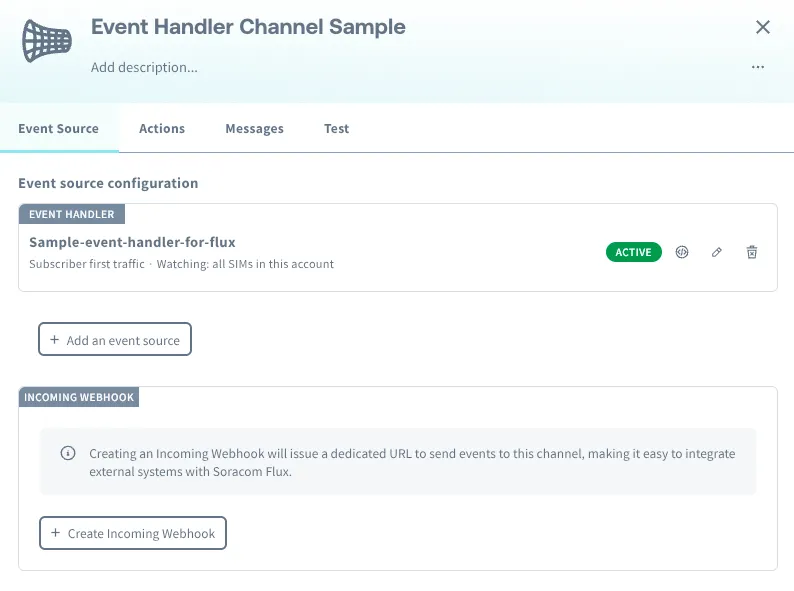
- Show sample payload: Shows the data that this event handler delivers to the channel. Refer to Data Format below.
- Edit: Opens the event handler on the Event Handler screen. Click Update or go back to return to the channel.
- Delete: Deletes the event handler itself, not only its link to the channel. This operation cannot be undone.
Deleting a channel also deletes every event handler that delivers to it. The confirmation dialog shows how many event handlers will be deleted.
Data Format
The data sent to a channel configured with the Event Handler event source consists of Message and Context.
You can check the data received by the event to the Flux App in the History tab of Soracom Flux Studio. For more details, refer to View Logs.
Message
The message has a single content field. payload.content arrives as a JSON string, not an object, so a Flux app has to parse it before reading the fields.
The JSON in content describes the resource the rule fired for and the event itself. Which fields are present depends on the rule:
| Field | Description |
|---|---|
resourceId | The ID of the resource the rule fired for: the IMSI of the SIM, the device ID of the device, or the Operator ID for operator-wide rules such as the monthly charge rule. |
imsi, simId | The IMSI and SIM ID of the SIM, for rules that fire for a SIM. |
deviceId | The device ID, for rules that fire for a device. |
operatorId | Your Operator ID. |
date, day, month, year | The date the event fired. |
coverage | jp for Japan coverage, g for Global coverage. |
tags | The tags of the SIM or device. Empty for operator-wide rules. |
handlerExecutionId | A unique ID for this execution of the event handler. |
| Rule variables | The variables of the rule that fired, such as oldStatus and newStatus for a status change rule, or sessionStatus and imei for a session status rule. |
Here is an example of the parsed content for a SIM traffic rule:
{
  "imsi": "295050012345678",
  "simId": "8981100012345678901",
  "resourceId": "295050012345678",
  "operatorId": "OP0012345678",
  "date": "2026/10/19",
  "day": "19",
  "month": "10",
  "year": "2026",
  "coverage": "g",
  "tags": {
    "name": "sensor-01"
  },
  "handlerExecutionId": "a1b2c3d4-e5f6-7890-abcd-ef1234567890"
}
To see the fields a specific event handler delivers, click Show sample payload on the channel's Event Source tab. Values in angle brackets are filled in when the event fires.