The Slack File Upload Action downloads files from the specified URLs and uploads them to the specified Slack channel. You can use it to share files output by other actions, such as still images captured from a camera, in Slack.
When you post a file URL as a message with the Slack Notification Action, a URL that expires can no longer be displayed in Slack after it expires. With the Slack File Upload Action, the file itself is stored in Slack, so you can still view it after the original URL expires.
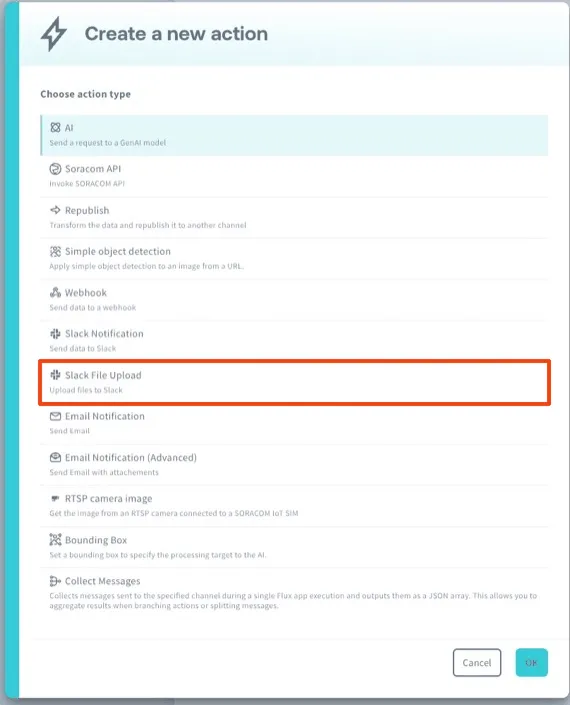
This action is available on the Standard and Enterprise plans. See Plans for details.
Preparing Slack
The Slack File Upload Action uploads files using the bot token of a Slack app. Before configuring the action, complete the following steps in Slack:
-
Create a Slack app.
-
Add the
files:writescope to Bot Token Scopes of the Slack app. -
Install the Slack app to your workspace.
Installing the app issues a bot token (a string that starts with
xoxb-). For details on bot tokens, refer to Token types in the Slack documentation. -
Invite the Slack app to the channel that you want to upload files to.
-
Check the channel ID (for example,
C0123456789) of the channel. -
Register the bot token as a credential set of the API Token credentials type, entering the bot token as the API token. For details, refer to Creating a Credential Set.
Configuration
In the Action Condition section, you can specify the conditions under which the action will be executed using the values (Message or Context) from the event source to the channel. For more details on the expressions you can input, refer to Use Expressions in Actions.
Configuring Slack File Upload Action
The Channel ID, File URL, File title, Message, and Thread timestamp fields support expressions, such as ${payload.imageUrl}.
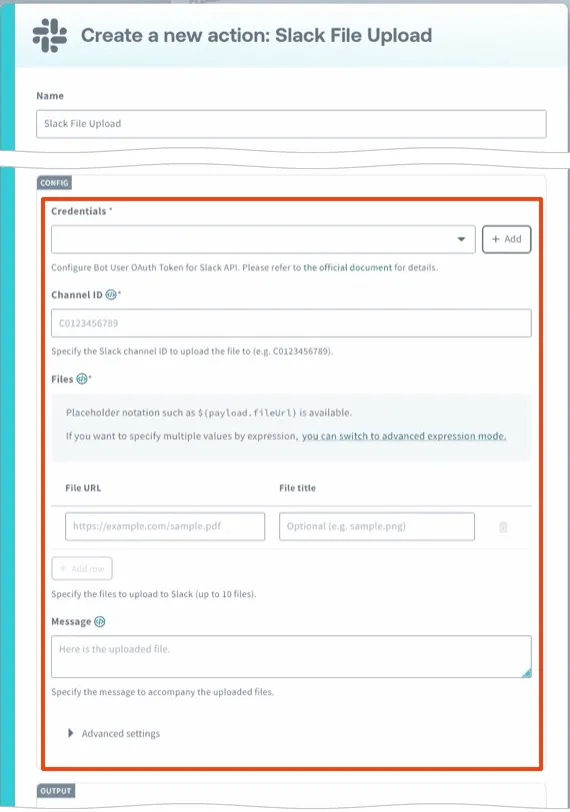
- Credentials (required): Select the credential set that contains the bot token of your Slack app. For details, refer to Preparing Slack.
- Channel ID (required): Enter the ID of the Slack channel to upload the files to (for example,
C0123456789). - Files: Enter the URL of each file to upload and an optional title to show in Slack. Add rows to upload up to 10 files.
- File URL (required): Enter the URL of the file.
- File title: Enter the title to show in Slack. If omitted, the file name of the downloaded file is used.
- To specify multiple files with a single expression (for example,
${payload.files}), click Use expression for multiple values (Advanced). For details, refer to Specifying Multiple Files with a Single Expression.
- Message: Enter the message to post with the files.
- Advanced settings > Thread timestamp: To upload the files as a reply in a thread, enter the timestamp (
thread_ts) of the parent message (for example,1234567890.123456). If omitted, the files are posted to the channel.
Output
Configure how to handle the output data of the action. Refer to Enable Republishing of Action Output for more details.
File Requirements
- You can upload up to 10 files per run.
- Each file can be up to 50 MiB, and the total size of the files in a run can be up to 100 MiB.
- Downloading and uploading each file are each limited to 60 seconds. The entire run is limited to about 4 minutes and 40 seconds.
- Soracom Flux accesses the file URLs without credentials. Specify URLs that can be downloaded from the internet without authentication, such as public URLs or signed URLs. Internal destinations, such as private IP addresses, are not allowed.
If a limit is exceeded or a file cannot be downloaded, the action returns an error.
If you specify a URL that expires, make sure that the action runs before the URL expires.
File Examples
Uploading an Image from a Previous Action
Add the Slack File Upload Action to the channel that receives the output of an action that outputs an image URL in imageUrl, and configure the action as follows:
- File URL:
${payload.imageUrl} - File title:
${payload.deviceId} - Message:
Captured a still image from ${payload.deviceId}.
Specifying Multiple Files with a Single Expression
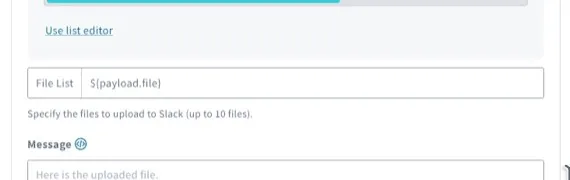
Click Use expression for multiple values (Advanced) to specify multiple files with a single expression. The expression must evaluate to one of the following formats:
-
An array of URLs:
[ "https://example.com/image1.jpg", "https://example.com/image2.png" ] -
An array of objects with
url(the file URL) andtitle(the file title, optional):[ { "url": "https://example.com/image1.jpg", "title": "Entrance camera" }, { "url": "https://example.com/image2.png", "title": "Warehouse camera" } ]
For example, if payload.files contains an array in one of the formats above, specify ${payload.files} to upload all the files in the array. To use the output of the Collect Messages Action, extract the file URL from each message in messages and convert them into an array in one of the formats above.
- Elements that cannot be interpreted as a URL, such as objects without
url, are ignored, and the remaining files are uploaded. - The limit of 10 files per run also applies when you use an expression.
Output Data of the Action
When the files are uploaded, the action outputs information about the uploaded files. files contains the file information returned by Slack's files.completeUploadExternal method.
Example:
{
  "ok": true,
  "files": [
    {
      "id": "F0123456789",
      "title": "7CDDE9AAAAAA"
    }
  ]
}
If the upload fails, the action outputs an error. If the Slack API returns an error, the error message includes the Slack error code (for example, not_in_channel, missing_scope, or invalid_auth). The following table lists common error codes and how to resolve them:
| Error code | Resolution |
|---|---|
invalid_auth, token_revoked, token_expired | Check the bot token registered in the credential set. |
missing_scope | Add the files:write scope to Bot Token Scopes of your Slack app, and reinstall the app to your workspace. |
not_in_channel, channel_not_found | Check the channel ID, and invite the Slack app to the channel. |
ratelimited | The Slack API rate limit was exceeded. Reduce how often the action runs or the number of files uploaded per run. |
If posting to the channel fails after the files have been transferred to Slack, the transferred files remain private in Slack. Soracom Flux does not delete these files.