# Users & Permissions
Manage Soracom Lagoon users and permissions.
When subscribed to the **Lagoon Maker** or **Pro** plans, you can manage additional Lagoon users. Lagoon users are separate from any Soracom Access Management (SAM) users associated with your Soracom account, and can only log in to the Soracom Lagoon Console.
There are two types of Lagoon users:
- **Editors** - These users are allowed to create, edit, and delete resources such as dashboards.
- **Viewers** - These users are only allowed to view resources such as dashboards.
You can manage Lagoon users in order to give customers or other members of your organization access to your dashboards, without providing access to your Soracom account.
In addition, when subscribed to the **Lagoon Maker** or **Pro** plans, you can also customize which users are able to view or edit individual Lagoon dashboards.
Each user can be assigned a role of **viewer** or **editor**. The default permissions of each role can be seen below.
|
Role |
Role | Viewer | Editor |
| - | - | - | - |
|
Dashboards |
View | ✓ | ✓ |
|
Dashboards |
Add, edit, delete | | ✓ |
|
Folders |
View | ✓ | ✓ |
|
Folders |
Add, edit, delete | | ✓ |
|
Playlists |
View | ✓ | ✓ |
|
Playlists |
Add, edit, delete | | ✓ |
|
Library Panels |
View | ✓ | ✓ |
|
Library Panels |
Create, delete | | ✓ |
|
Annotations |
View | ✓ | ✓ |
|
Annotations |
Add, edit, delete | | ✓ |
|
Access Explore |
Access Explore | | ✓ |
|
Teams |
Add, edit | | ✓ |
|
Teams |
Change settings | | ✓ |
## Managing Users
### Creating a User
You may need to periodically add additional Lagoon users. To do this, follow the steps below:
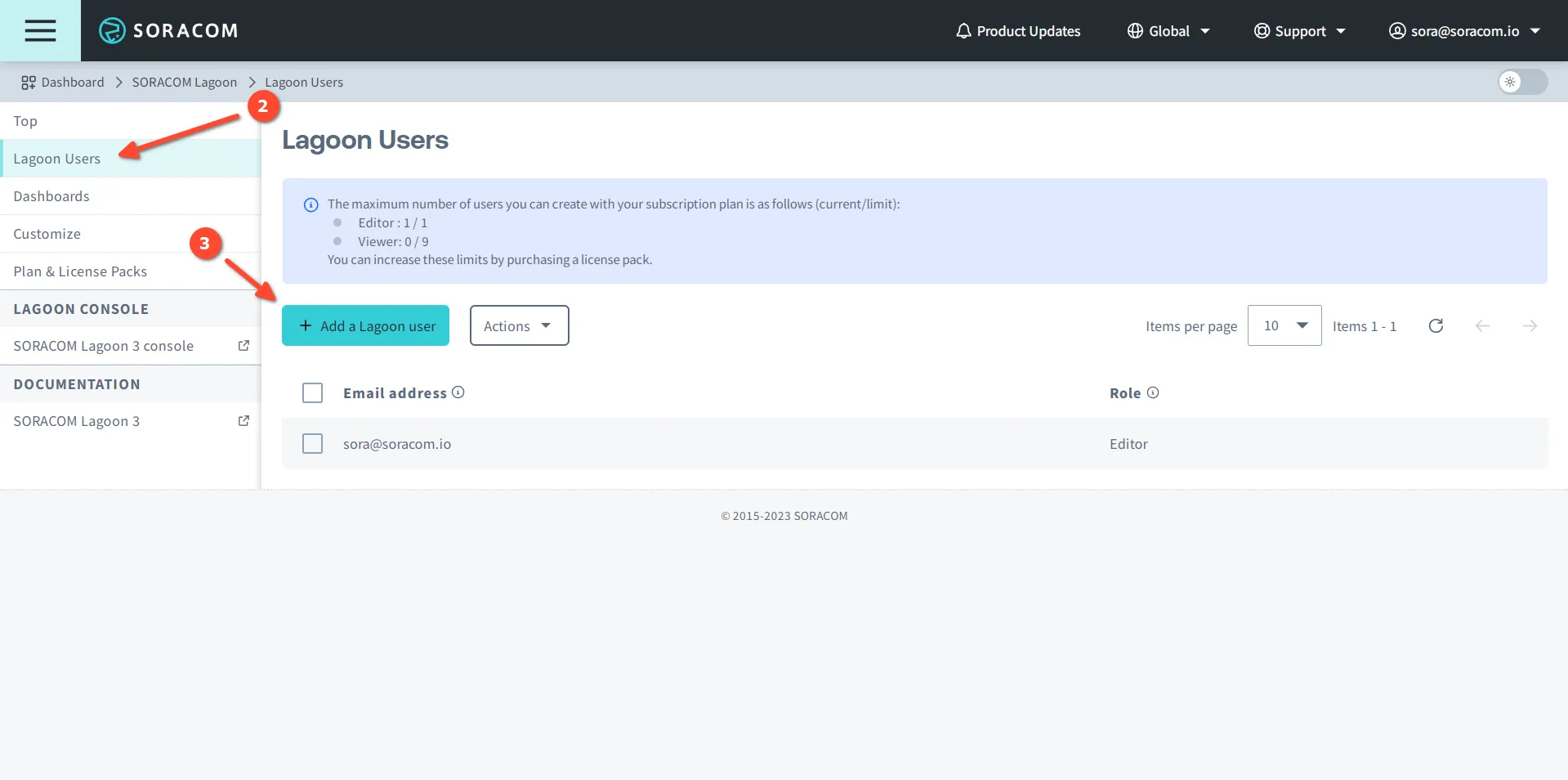
1. Sign in to the **[User Console](https://console.soracom.io/?coverage_type=g)**. From the **☰ Menu**, open the **SORACOM Lagoon** screen.
2. Select **Lagoon Users** in the sidebar navigation.
3. Click the **+ Add a Lagoon user** button.
4. Enter the user **Role**, **Email address**, and **Password**, then click the **Create** button.
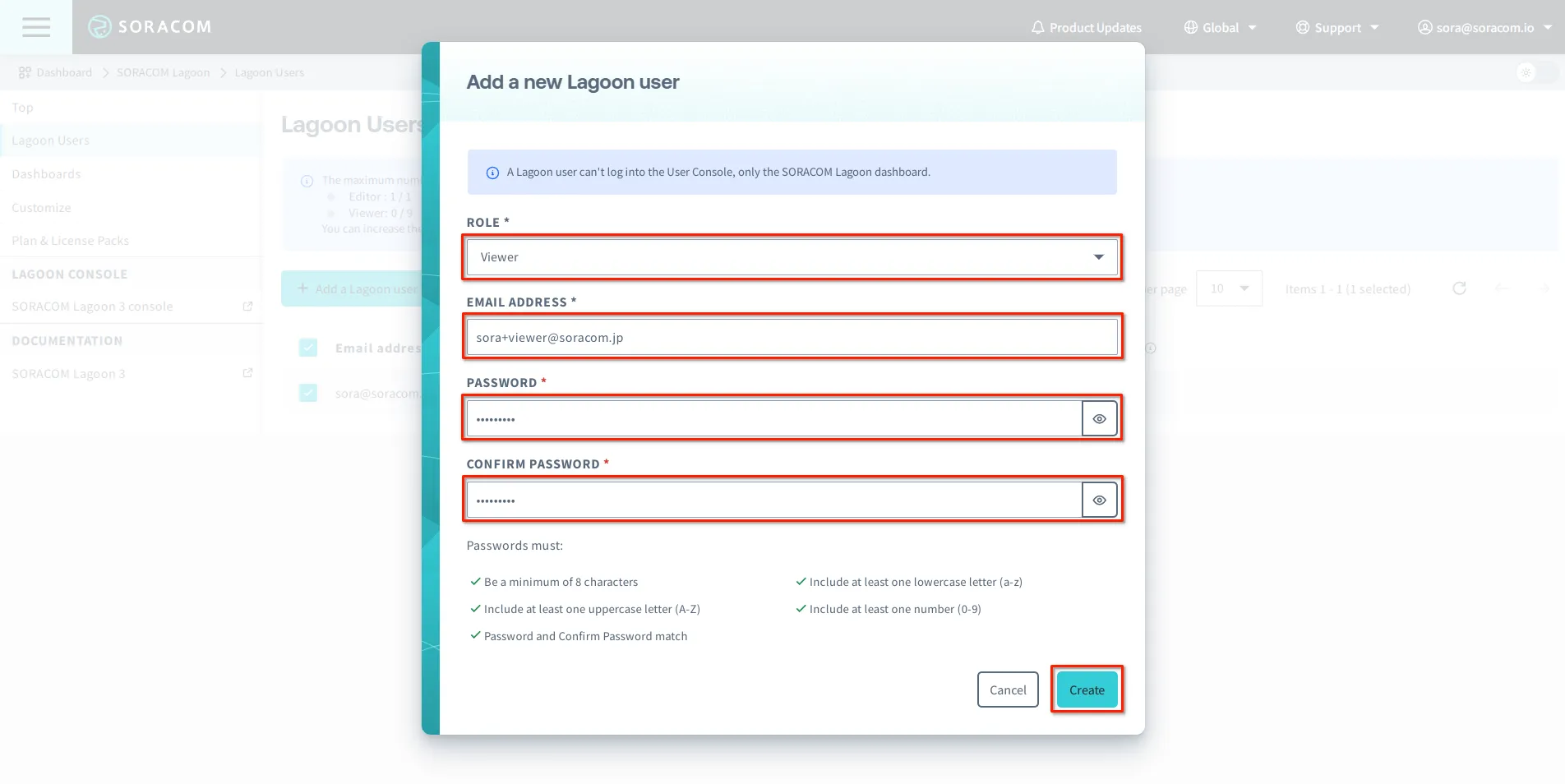
Once created, the user will appear in the list of Lagoon users.
### Modifying a User
If you want to change the **email address**, **password**, or **role** of a Lagoon user, see the steps below:
1. Sign in to the **[User Console](https://console.soracom.io/?coverage_type=g)**. From the **☰ Menu**, open the **SORACOM Lagoon** screen.
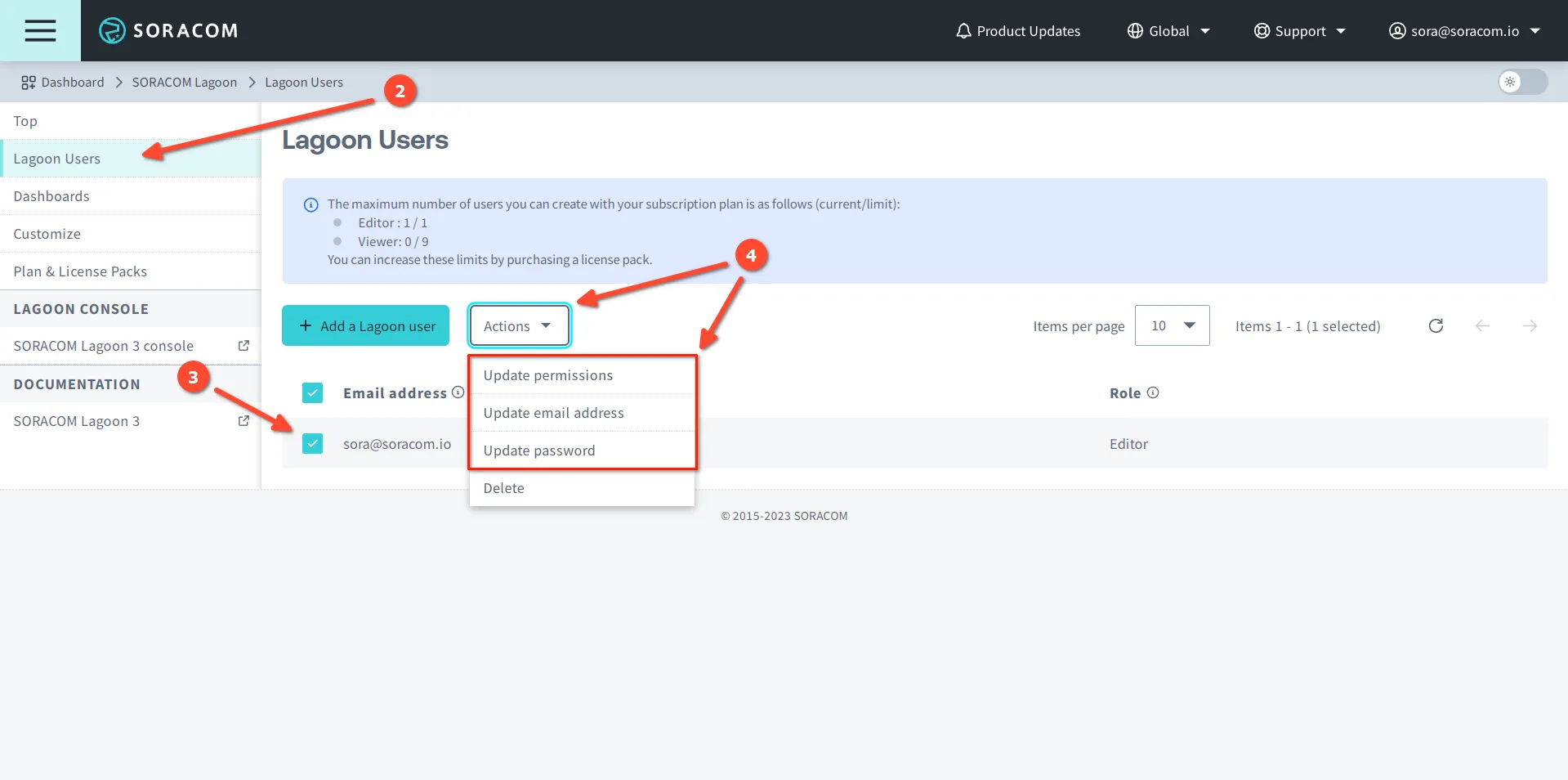
2. Click **Lagoon Users** in the sidebar navigation.
3. Click the **☑** for the Lagoon user you want to modify.
4. Click the **Actions ▾** menu, then choose either **Update permissions**, **Update email address**, or **Update password**:
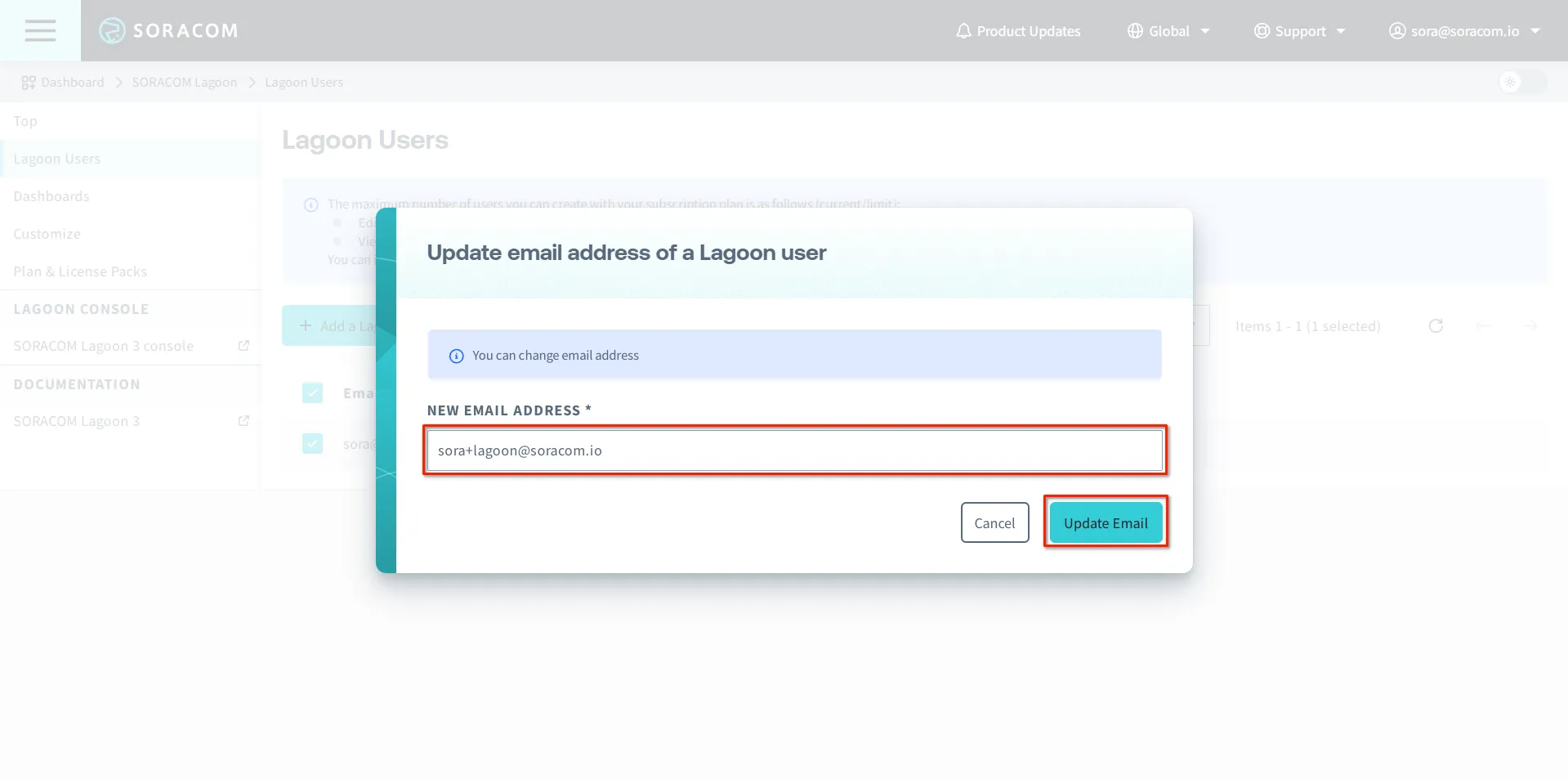
- To change the email address, select **Update email address**. Then enter the **new email address** and click the **Update Email** button.
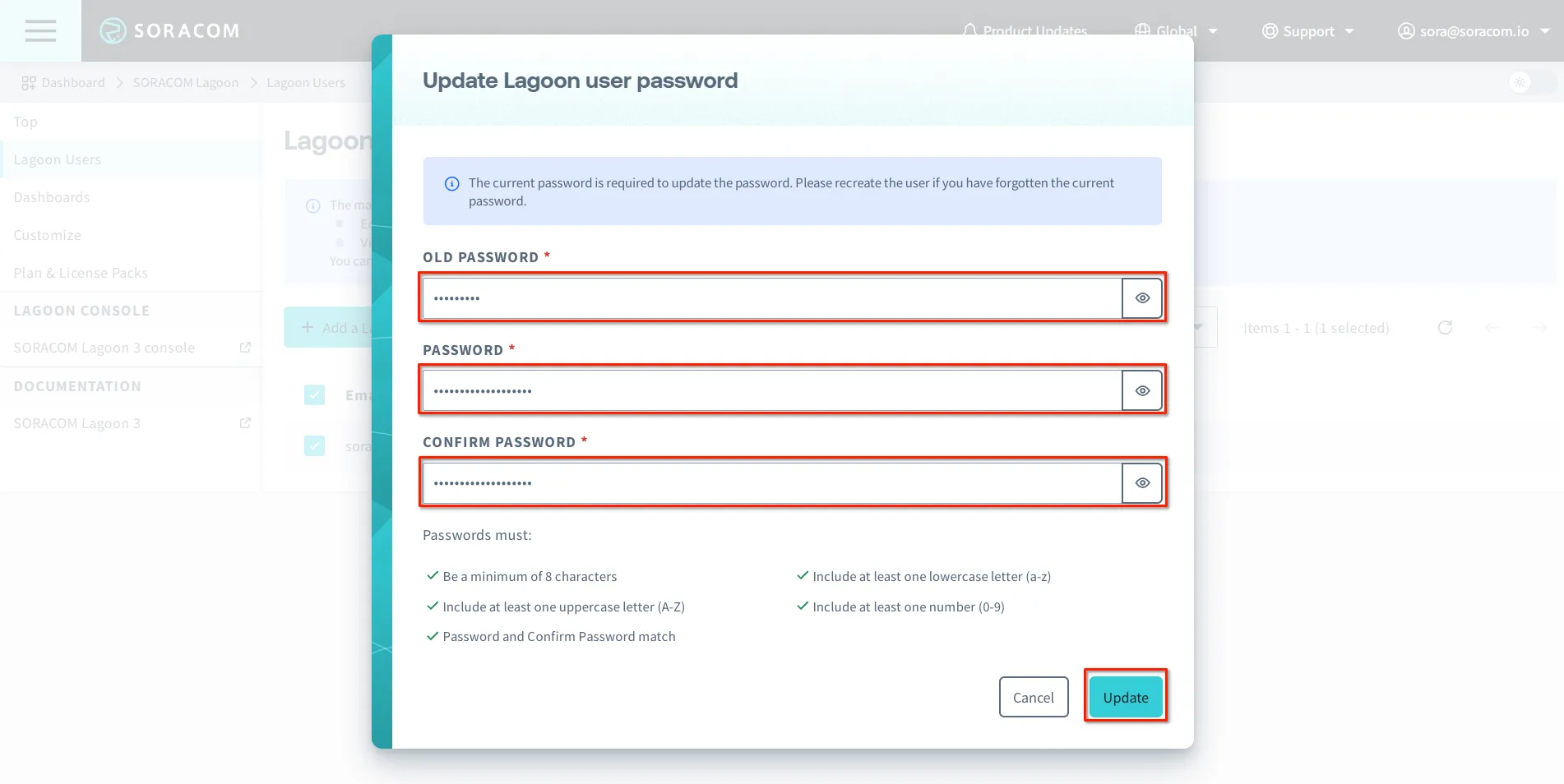
- To change the password, select **Update password**. Then enter the **current password**, enter and confirm the **new password** and click the **Update** button.
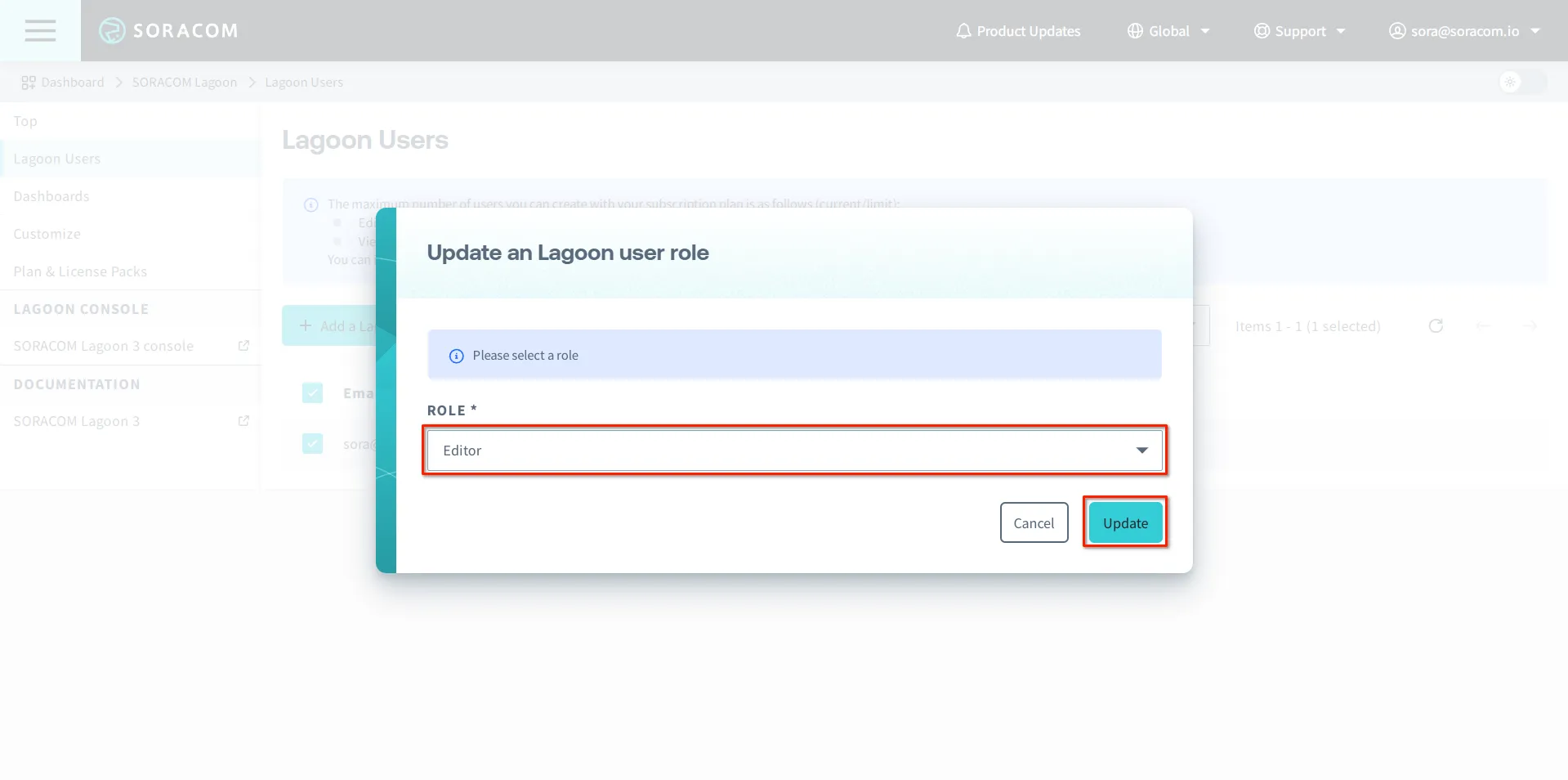
- To change the role, select **Update permissions**. Then select the new **role** and click the **Update** button.
### Deleting a User
If you no longer need a particular Lagoon user, you can delete it from the Lagoon Users page.
> [!WARNING]
>
> Lagoon Users can be deleted and recreated at any time without impact to your Lagoon data. Only when unsubscribing from Lagoon will data also be deleted.
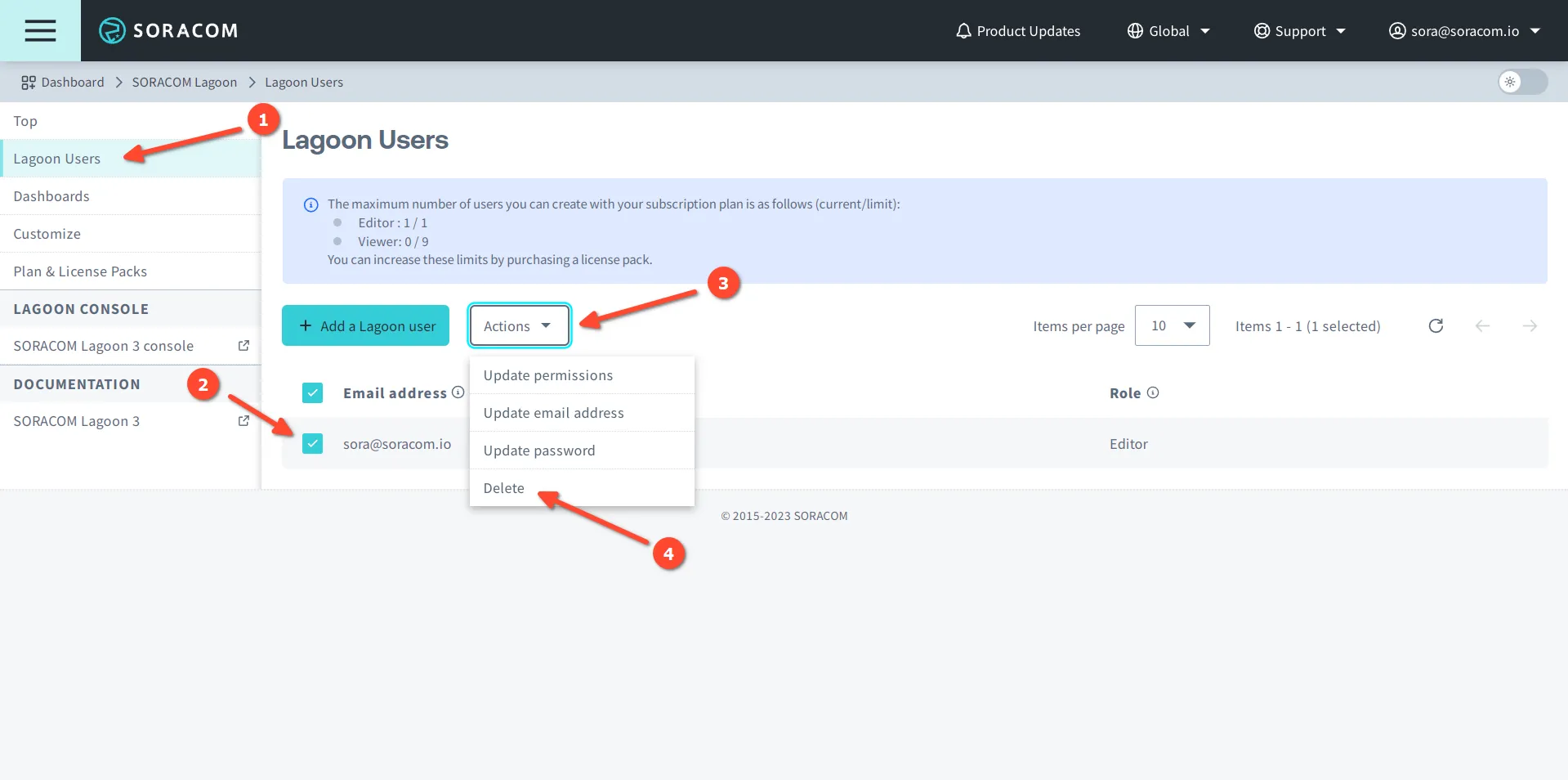
1. Sign in to the **[User Console](https://console.soracom.io/?coverage_type=g)**. From the **☰ Menu**, open the **SORACOM Lagoon** screen.
2. Click **Lagoon Users** in the sidebar navigation.
3. Click the **☑** for the user you want to delete.
4. Click the **Actions ▾** menu, then select **Delete**.
5. Click the **Delete** button to confirm.
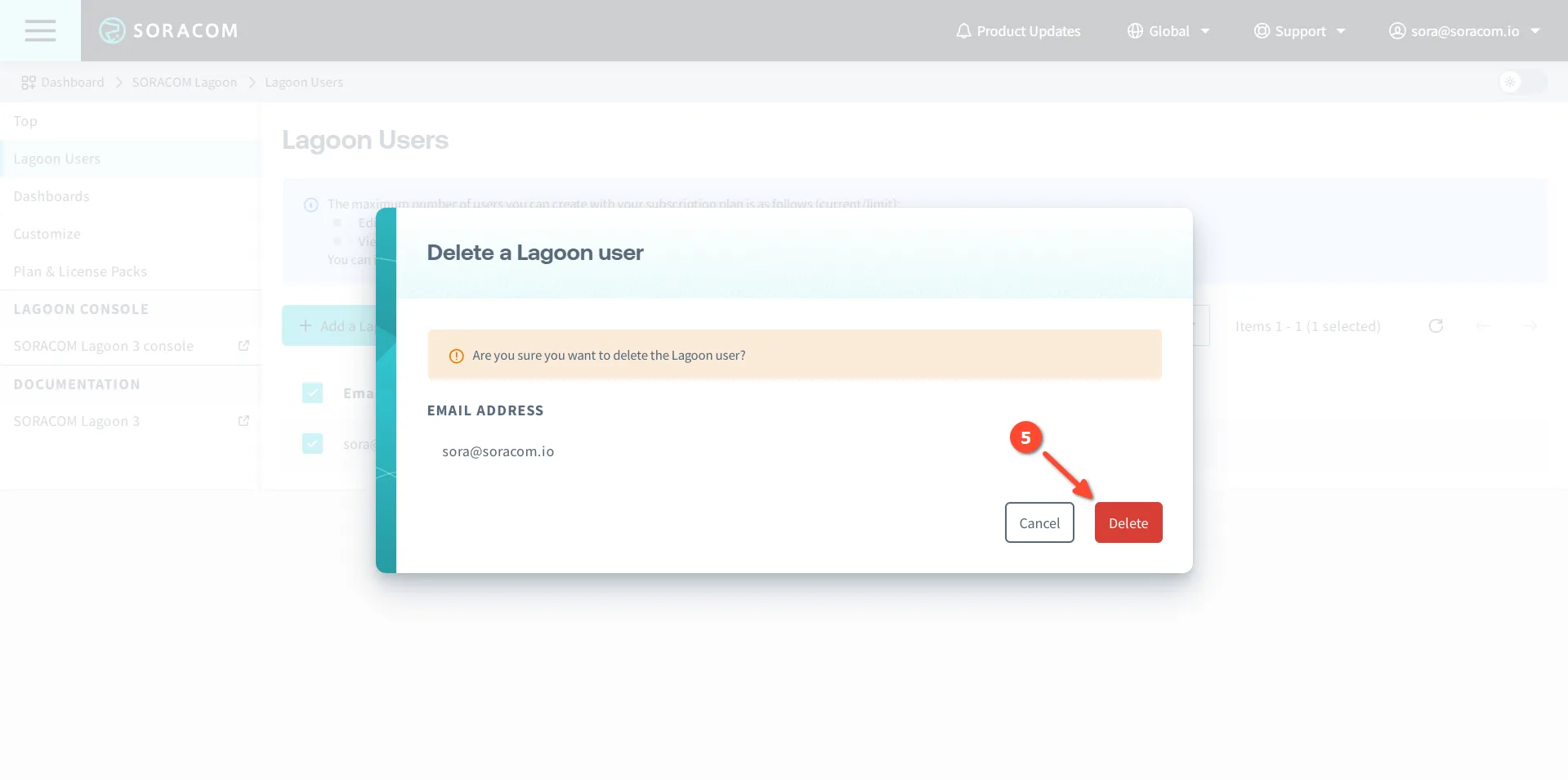
The Lagoon user will be deleted immediately after confirmation.