# Plans & License Packs
Compare Soracom Lagoon plans, licenses, and additional capacity.
> [!WARNING]
>
> All Soracom accounts have access to the **Lagoon Free** plan at no additional cost. Subscribing to **Lagoon Maker** or **Pro** plans, as well as adding **Lagoon Pro License Packs** will incur additional fees. Refer to the [Pricing & Fee Schedule](https://docs.soracom.io/en/pricing) for more information.
Soracom offers three plans for Lagoon; **Free**, **Maker** and **Pro**. An overview of what is included in each plan can be found below:
|
Plan | Free | Maker | Pro |
| - | - | - | - |
|
Dashboards | 1 | 3 | 5 |
|
Alerts | 1 | 10 | 20 |
|
Editors | 1 | 1 | 1 |
|
Viewers | | 2 | 9 |
|
Update Rate | 60 sec | 30 sec | 5 sec |
|
Data Fetch Limit | 10 MiB | 20 MiB | 50 MiB |
|
Dashboard Permissions | | ✓ | ✓ |
|
Dashboard Snapshots | | | ✓ |
|
Public Dashboard | | | ✓ |
|
Playlist | | ✓ | ✓ |
|
Library Panels | | ✓ | ✓ |
|
Custom Logo | | | ✓ |
Description of Lagoon components:
- **Update Rate** refers to the maximum rate at which data for each dashboard or panel can be refreshed.
- **Data Fetch Limit** refers to the maximum amount of data which can be fetched from Harvest Data per resource in a query.
- **Dashboard Permissions** provide a way for you to allow or deny user access to different dashboards.
- **Dashboard Snapshots** allow you to create a snapshot of your dashboard with a set of panel queries and data, and then share this publicly to users who do not have access to Lagoon or the specific dashboard.
- **Public Dashboards** allow you to share your full dashboard with anyone. This is useful when your dashboard needs to be publicly accessible.
- **Playlist** allows you to create a slide-show of multiple Dashboards that will rotate at regular time intervals.
- **Library Panels** are a reusable type of panel that you can create once and then reuse across multiple dashboards by selecting it from the panel library.
- **Custom Logo** gives you the ability to customize the logo that appears on each dashboard.
## Managing Your Lagoon Plan
### Subscribe to Lagoon
To begin using Lagoon, follow the steps below:
1. Sign in to the **[User Console](https://console.soracom.io/?coverage_type=g)**. From the **☰ Menu**, open the **SORACOM Lagoon** screen.
> [!NOTE]
>
> Lagoon plans cannot be managed by SAM users. Ensure you are logged in with your [**primary email address**.](https://docs.soracom.io/en/services/account/email#primary-email-address)
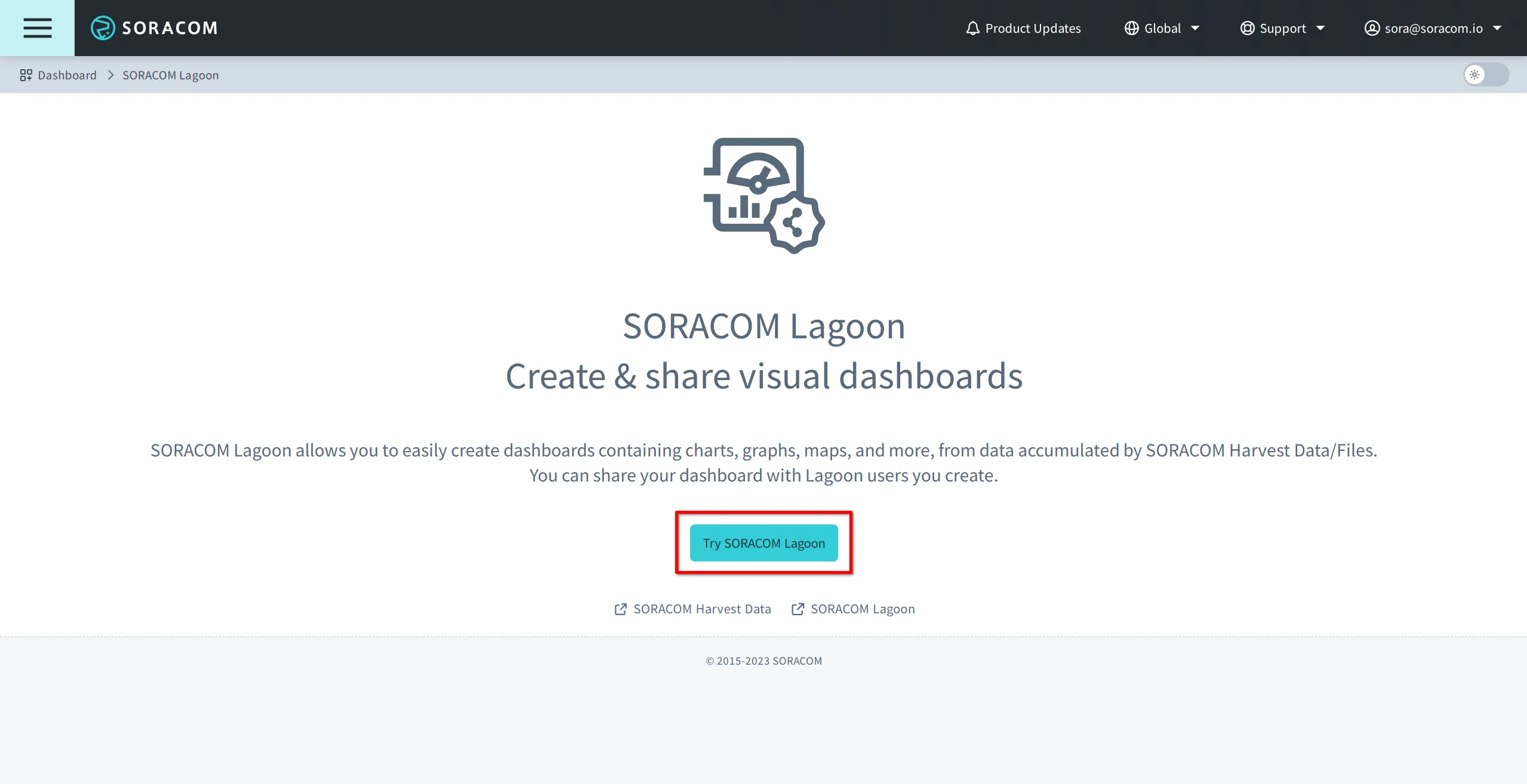
2. Click the **Try SORACOM Lagoon** button.
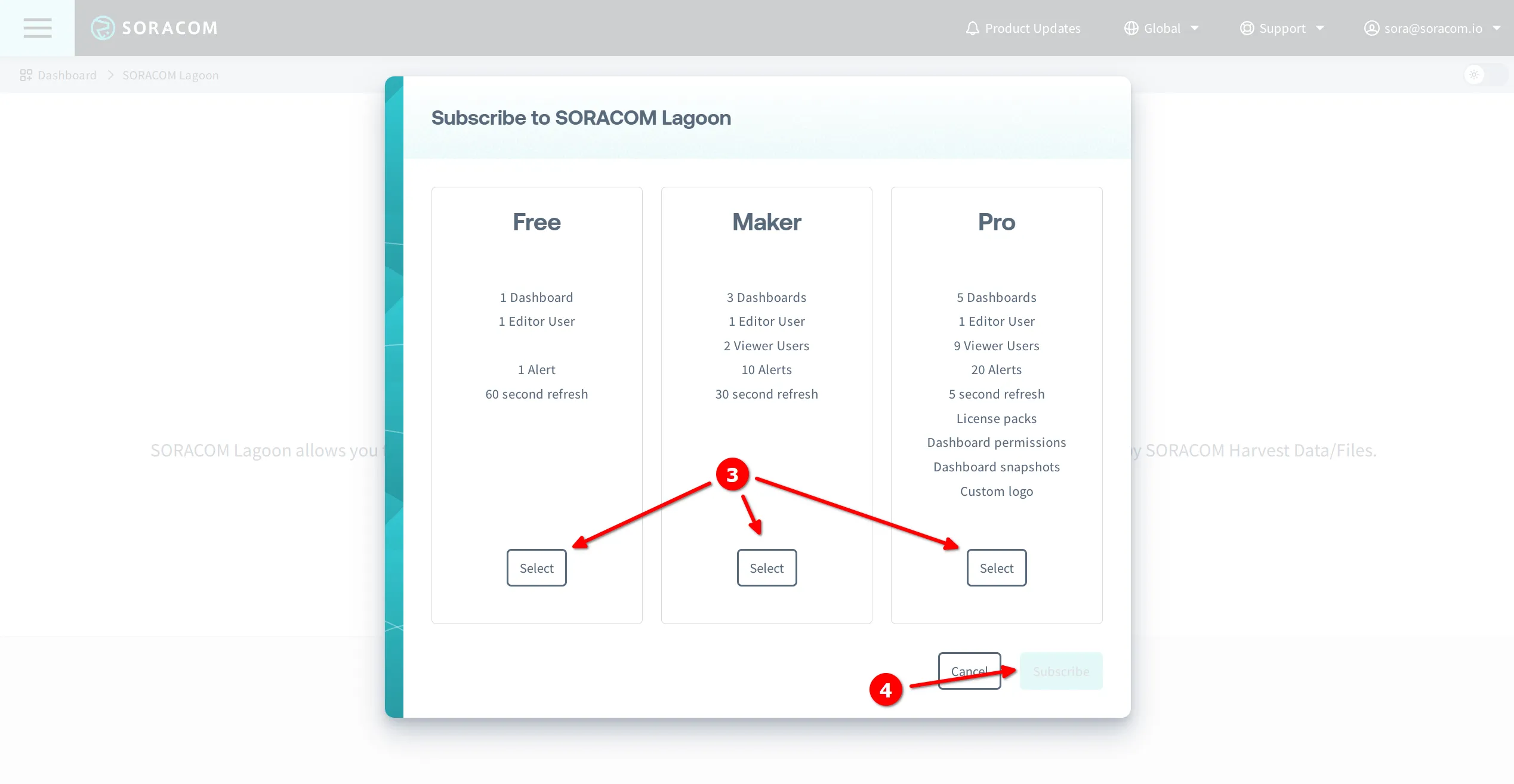
3. Choose from the **Lagoon Free**, **Maker**, or **Pro** plans by clicking **Select**.
4. Click the **Subscribe** button to proceed to the next screen.
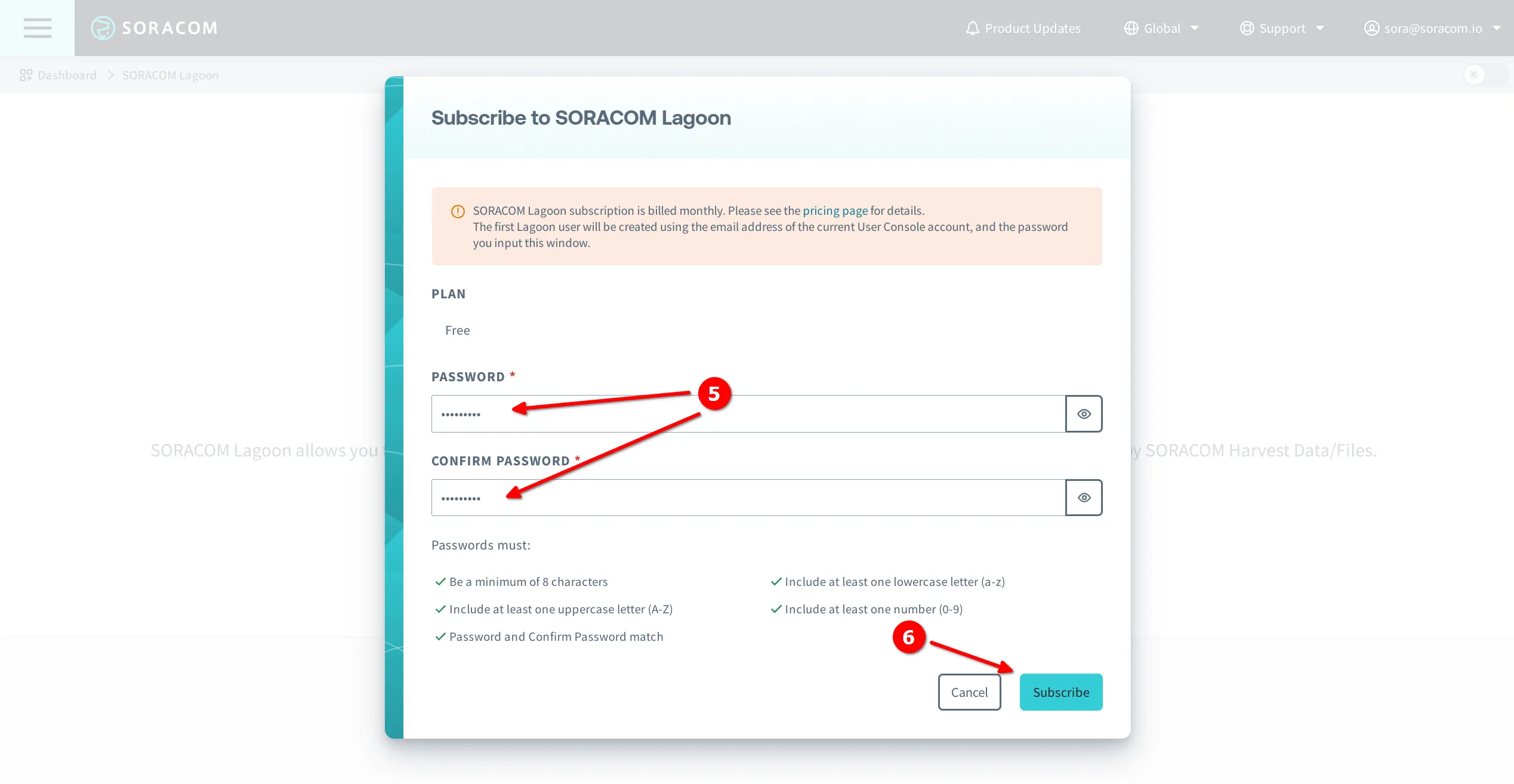
5. Enter a **password**, then enter it again to confirm it.
> [!WARNING]
>
> During the sign-up process, a password is requested for the default Lagoon user that is created. This user is assigned the **Editor** role. The email address used for this default Lagoon user is the [primary email address](https://docs.soracom.io/en/services/account/email#primary-email-address) on your Soracom account.
6. Click the **Subscribe** button again to confirm your subscription.
Your Lagoon plan will be activated immediately and you will be redirected to the Lagoon **Top** page where you can begin using Soracom Lagoon.
### Changing Your Lagoon Plan
> [!WARNING]
>
> When changing your Lagoon plan, billing will be based on the highest-tiered plan selected for your Soracom account that month. For example:
>
> - Upgrading from the Maker plan to the Pro plan means you'll be billed for the Pro plan both for the current month and the months that follow.
> - Downgrading from the Maker plan to the Free plan results in the Maker plan charges for the current month. The Free plan pricing will apply from the next month onward.
You can change your Lagoon plan at any time in order to add more users or enable additional Lagoon features, such as controlling which users are able to view or edit specific dashboards, or customize the logo that appears in the Lagoon console.
1. Sign in to the **[User Console](https://console.soracom.io/?coverage_type=g)**. From the **☰ Menu**, open the **SORACOM Lagoon** screen.
2. Select **Plan & License Packs** from the sidebar navigation.
3. Select the **Lagoon Plan** that you want to use.
> [!WARNING]
>
> If you want to resubscribe to the Lagoon Free plan after switching to the Maker or Pro plans, you must first [Unsubscribe from Lagoon](https://docs.soracom.io/en/services/lagoon/plans-and-license-packs#unsubscribe-from-lagoon) and then [Subscribe to Lagoon](https://docs.soracom.io/en/services/lagoon/plans-and-license-packs#subscribe-to-lagoon) again under the Free plan.
4. Click the **Update plan** button.
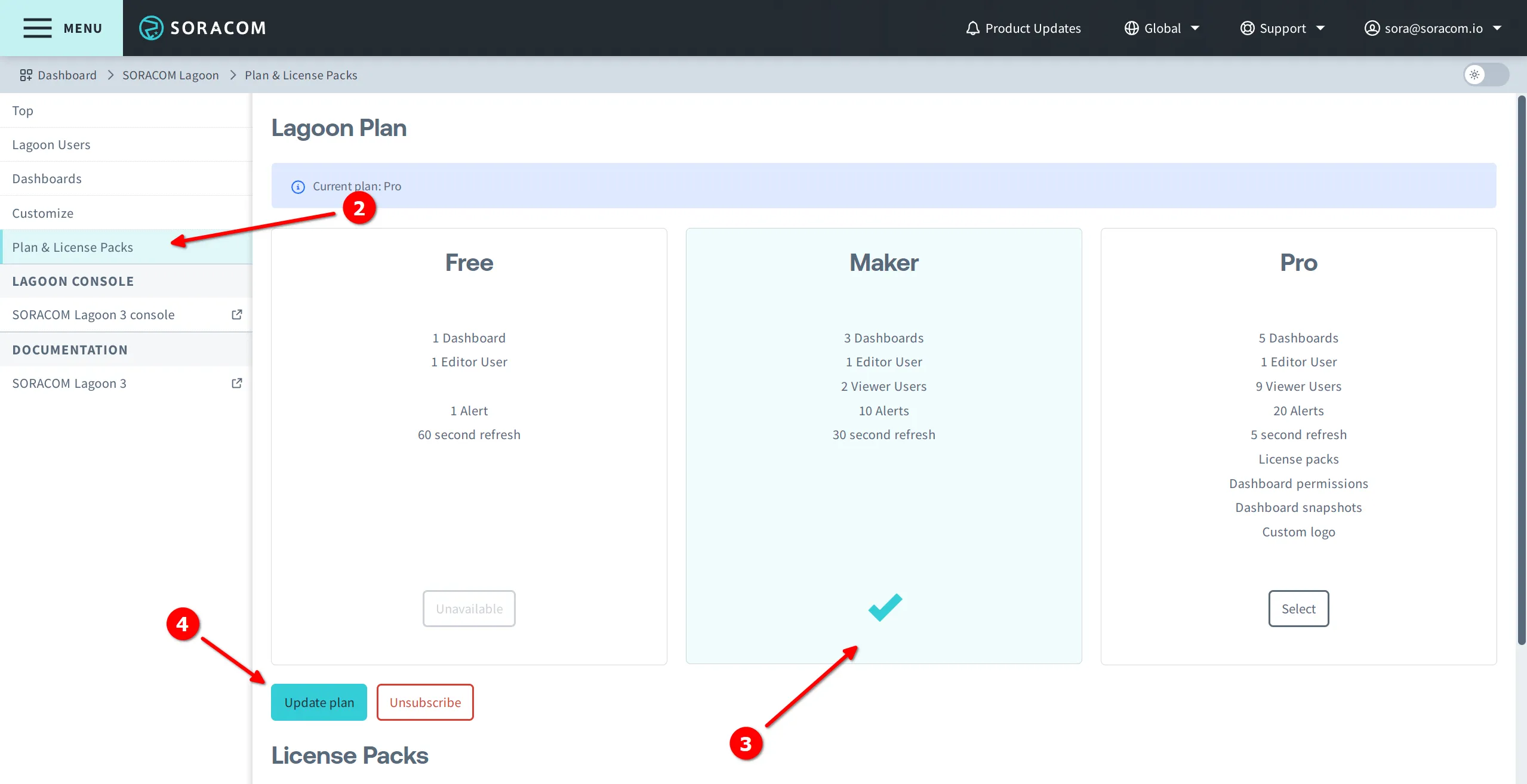
5. Click the **Update plan** button again to confirm the plan update.
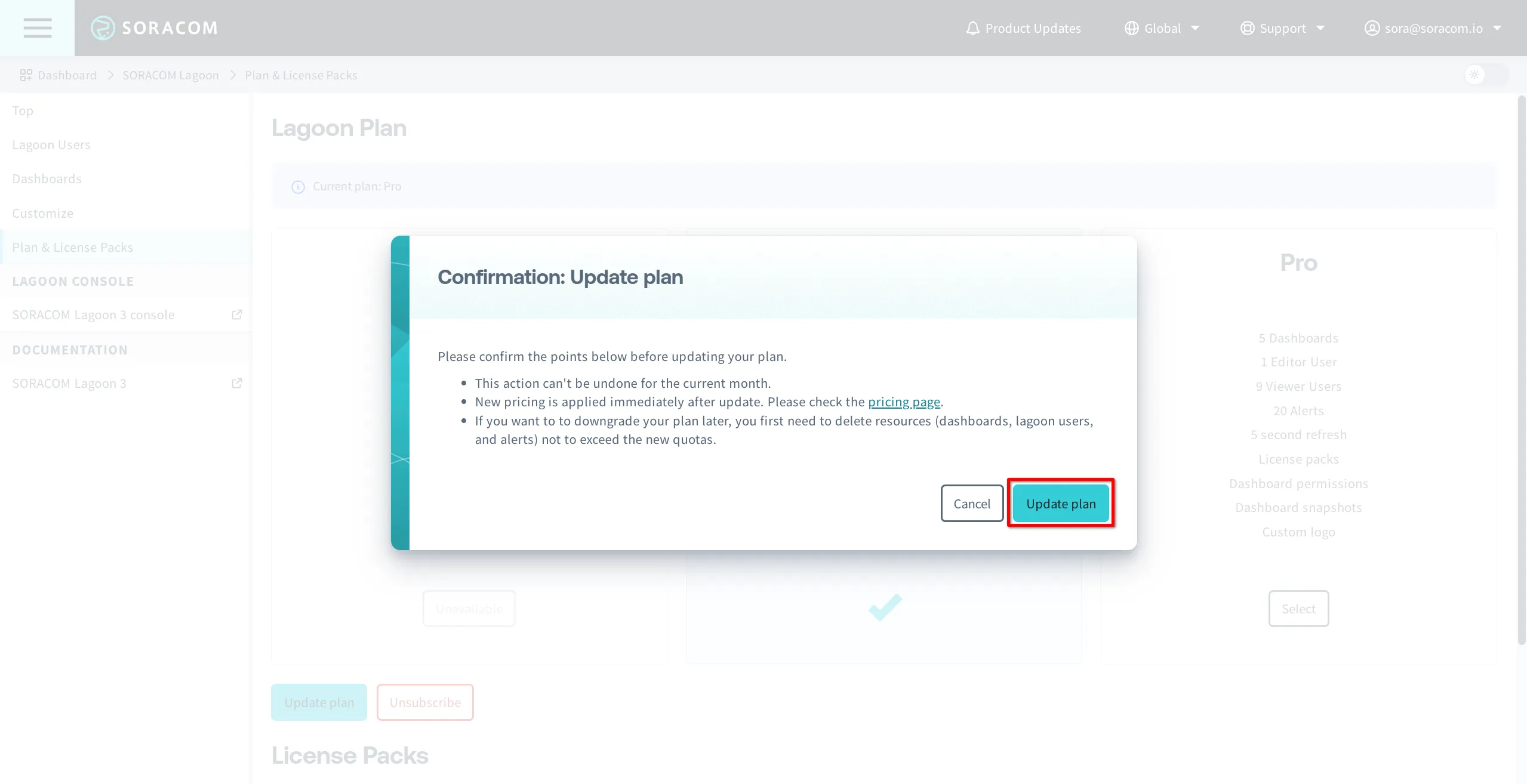
Your Lagoon subscription will be updated immediately to reflect any change in your quotas.
### Unsubscribe from Lagoon
> [!NOTE]
>
> Unsubscribing from Lagoon will result in the immediate deletion of all Lagoon data including dashboards, users, and alerts.
If you no longer wish to use Lagoon, you can unsubscribe at any time using the steps below:
1. Sign in to the **[User Console](https://console.soracom.io/?coverage_type=g)**. From the **☰ Menu**, open the **SORACOM Lagoon** screen.
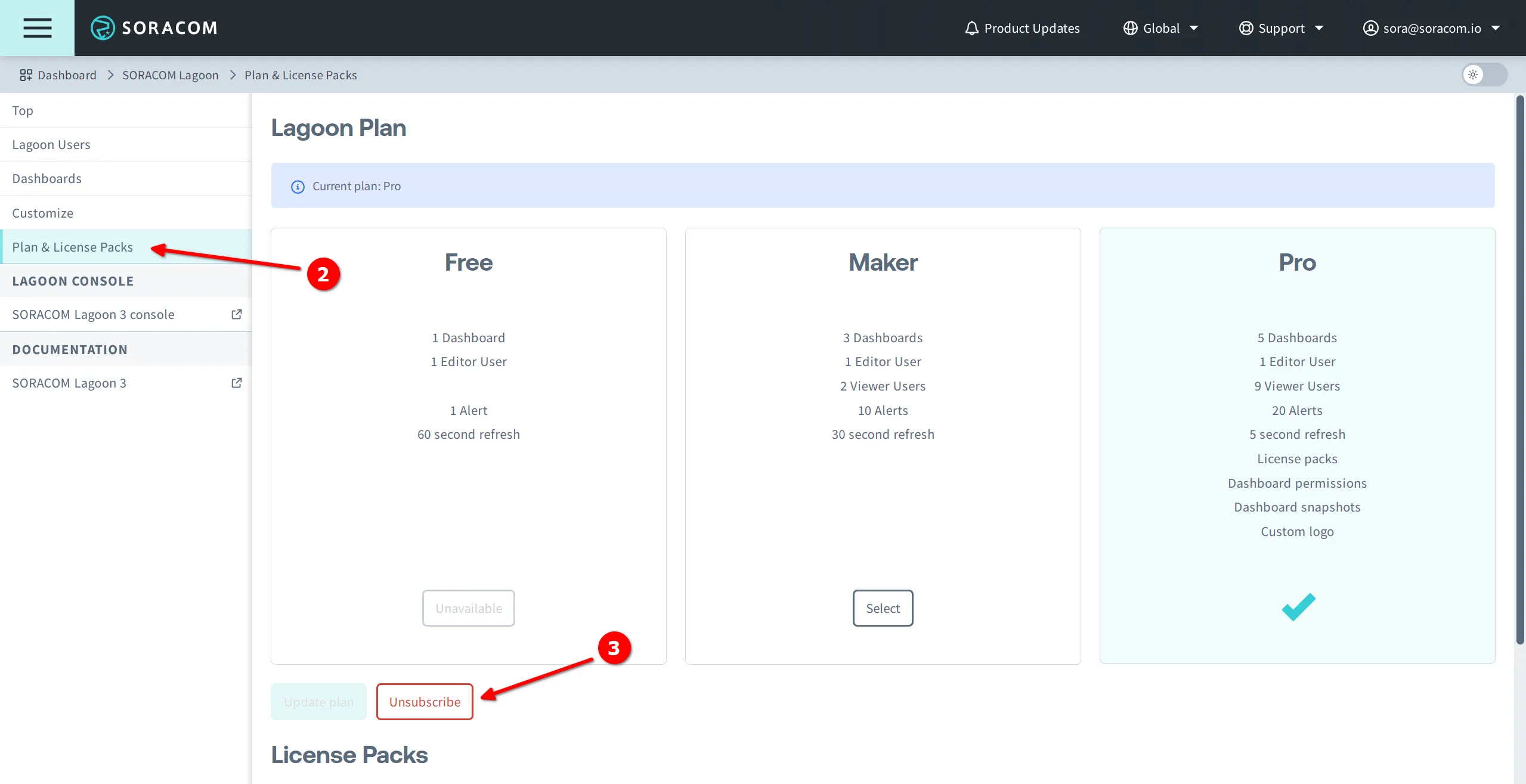
2. Select **Plan & License Packs** from the sidebar navigation.
3. Click the **Unsubscribe** button.
4. Click the **Unsubscribe** button again to confirm.
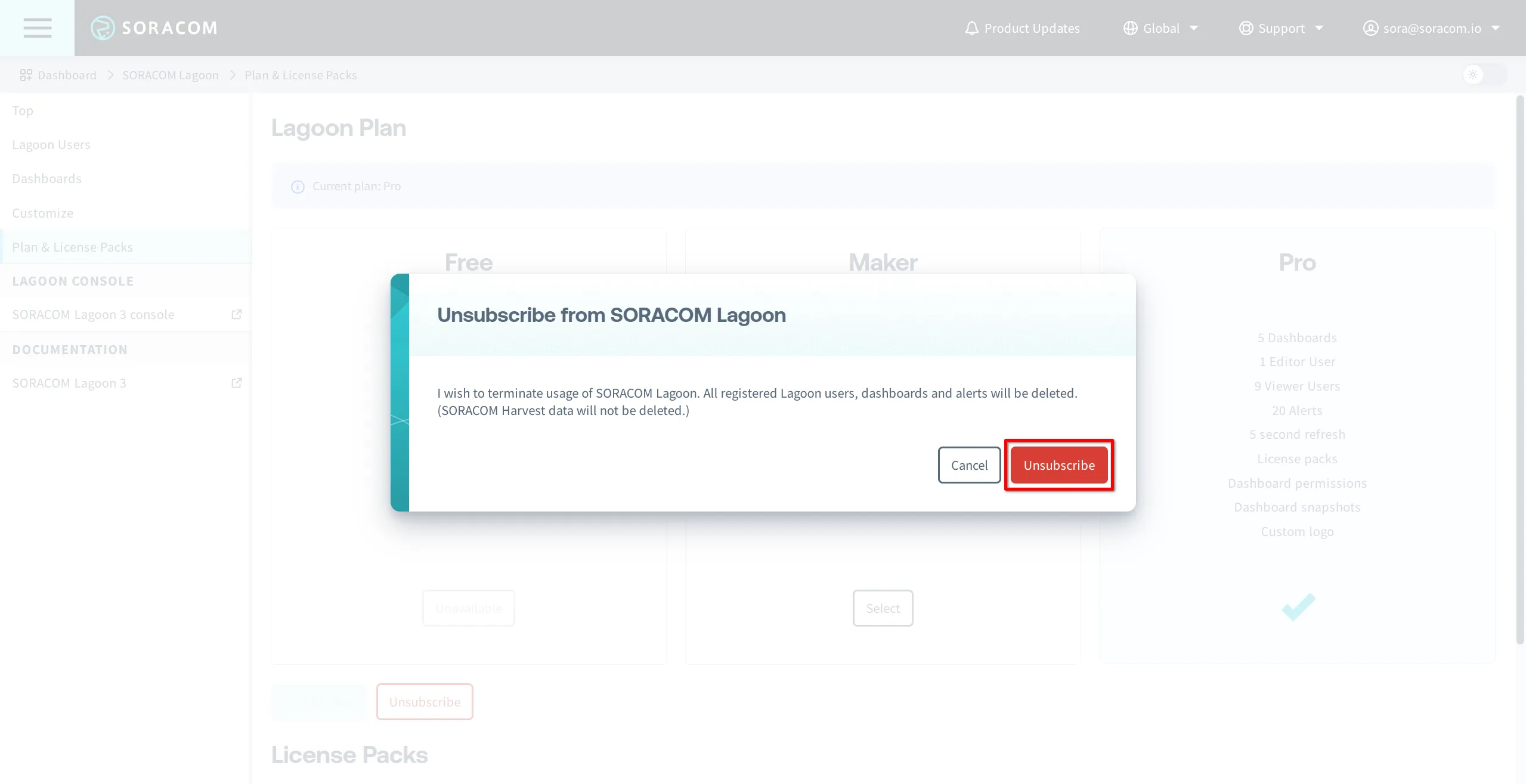
Your Lagoon plan will be stopped immediately and any Lagoon users, dashboards, and alerts will become unavailable.
## Managing Your Lagoon Pro License Packs
> [!WARNING]
>
> When adjusting your Lagoon Pro License Packs, billing will be based on the higher number of packs selected for your Soracom account. For example:
>
> - If you add more license packs, you'll be billed for the new total both for the current month and the months that follow.
> - If you reduce the number of license packs, you'll incur charges for the original higher number for the current month. The adjusted pricing for the fewer packs will apply from the next month onward.
When subscribed to the **Lagoon Pro** plan, you can add more Lagoon users and dashboards according to your requirements. By default, the Pro plan includes 1 editor, 9 viewers, 5 dashboards, and 20 alerts.
Adding more users or dashboards is done by adding **License Packs** to your Lagoon Pro subscription.
Each license pack adds the following:
- **User License Pack** - Adds 1 additional editor and 4 additional viewers.
- **Dashboard License Pack** - Adds 1 additional dashboard and 4 additional alerts.
### Adding or Removing License Packs
1. Sign in to the **[User Console](https://console.soracom.io/?coverage_type=g)**. From the **☰ Menu**, open the **SORACOM Lagoon** screen.
2. Click the **Manage license packs** button.
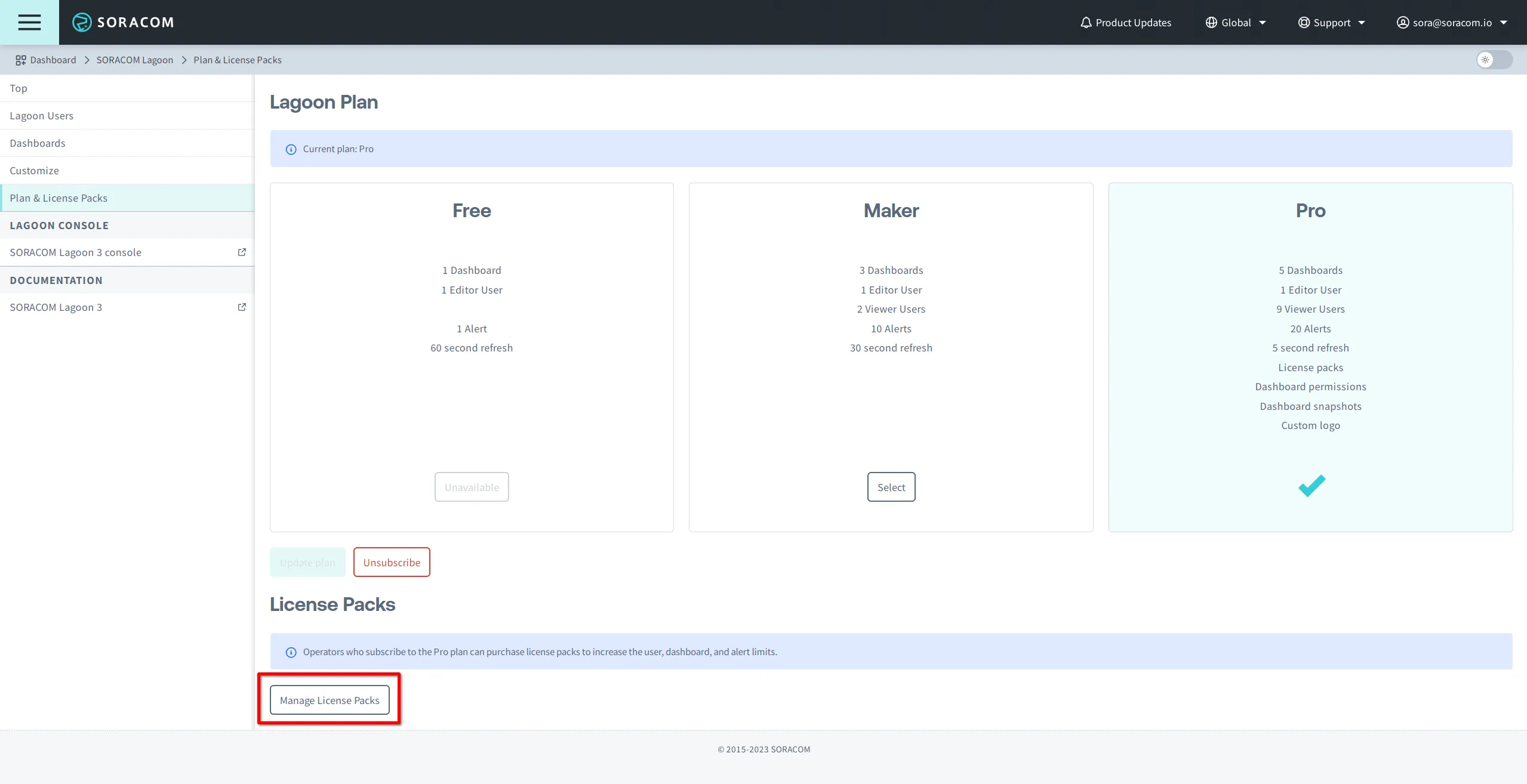
3. Edit the number of **User packs** and **Dashboard packs** as needed.
> [!WARNING]
>
> The total number of editors, viewers, dashboards, and alerts will be displayed based on the number of license packs you have selected.
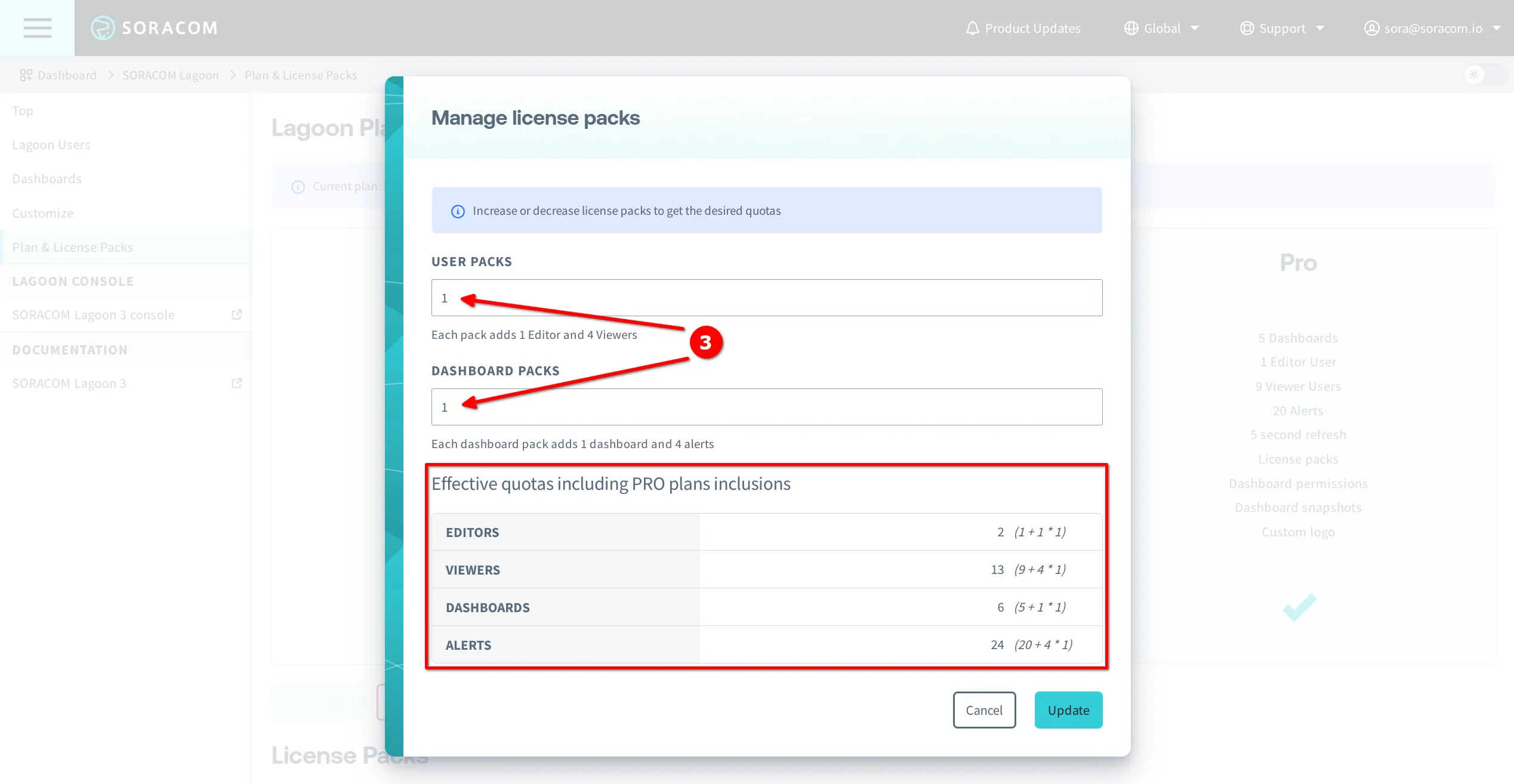
4. Click the **Update** button.
Any additional editors, viewers, dashboards, and alerts that were added through License Packs will be will be available immediately.
> [!WARNING]
>
> Note that the maximum number of license packs that can be added through the User Console is 99. To purchase 100 or more, use the `Lagoon:updateLagoonLicensePack` Soracom API. See [API Reference](https://docs.soracom.io/en/api#Lagoon/updateLagoonLicensePack/) for further information.